Your first run, start to finish
Pick Product staging, add a row per product, drop the photos in, pick your pool, describe the scene and press Run: studio photos for every product at once.
›Read the transcript
Three products. Three studio photos. One run. This is your first run in FlowArray.
Open Workflows, and pick Product staging.
Add a row for each product, and drop its photo in. Three rows, three products.
Pick the pool with your API key, then tell the model the scene you want: a warm oak table, soft morning light.
Press Run. All three go at the same time.
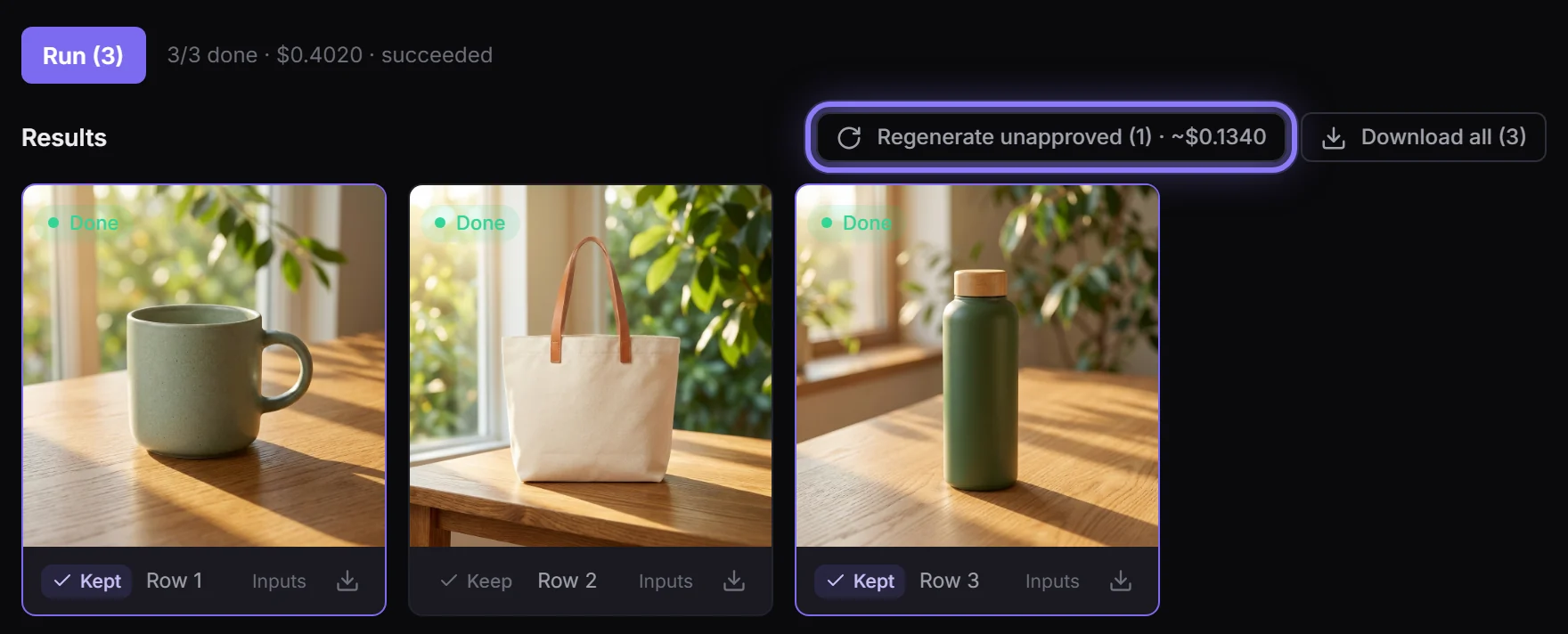
Eighteen seconds later, here they are. Keep the ones you like. Regenerate the rest, and only those are paid for again.
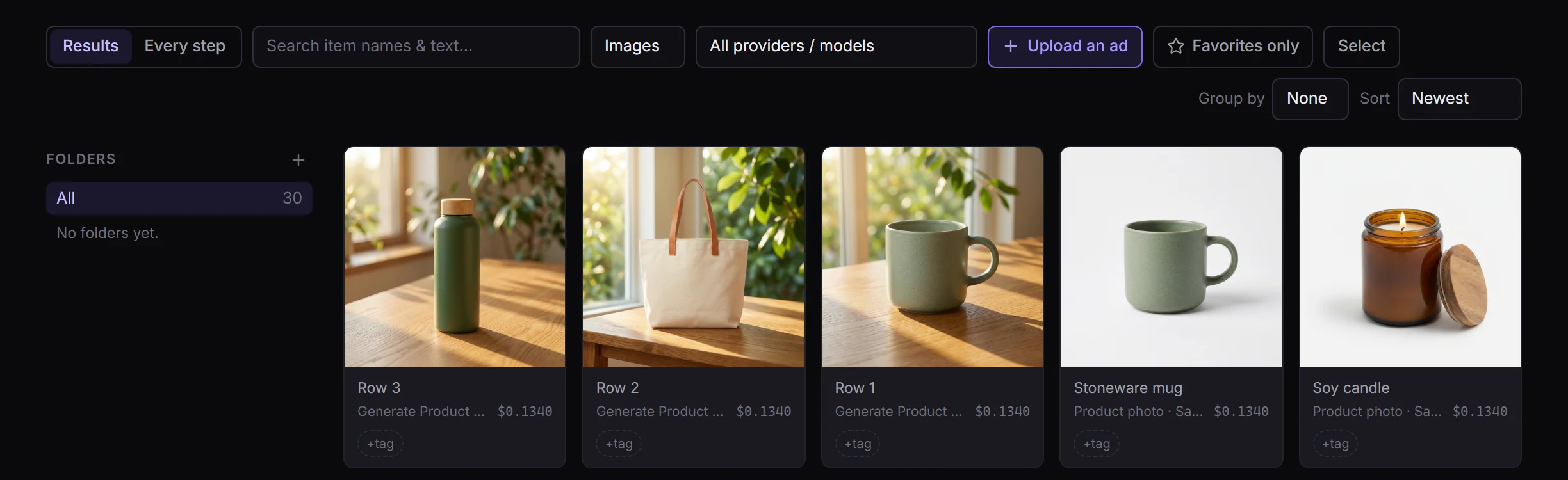
Download them all, or find them later in your Library.
FlowArray. One prompt, your whole catalogue.
The quickest way to see what FlowArray does is to do it once: three product photos in, three studio photos out, all made at the same time. The same few clicks work for three rows or three hundred.
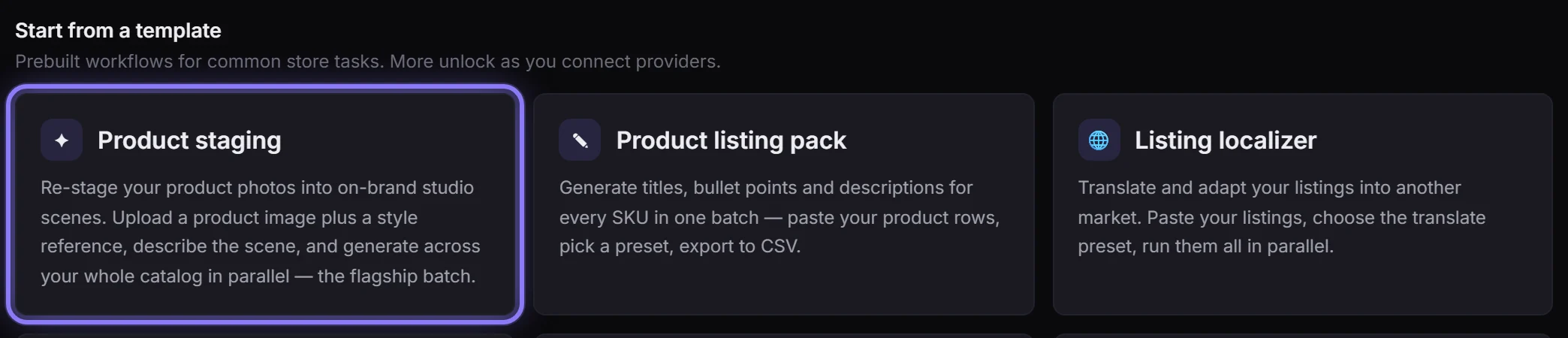
Step 1: Open the Product staging template
Go to Workflows in the sidebar and pick Product staging. It opens in the Builder, ready to go: a table for your products, one image step, and the Run button.
Step 2: Add a row for each product
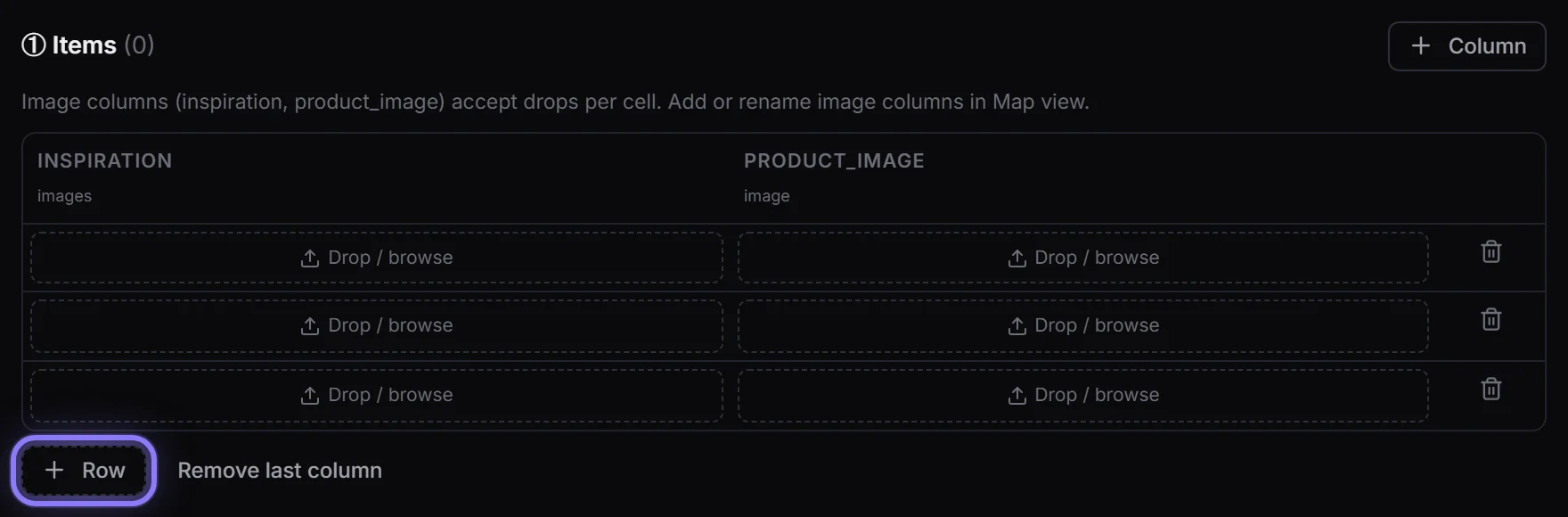
One row is one product. Press + Row until there is a row for each one; we used three. A long list? Bring a spreadsheet instead: see Running a spreadsheet of items.
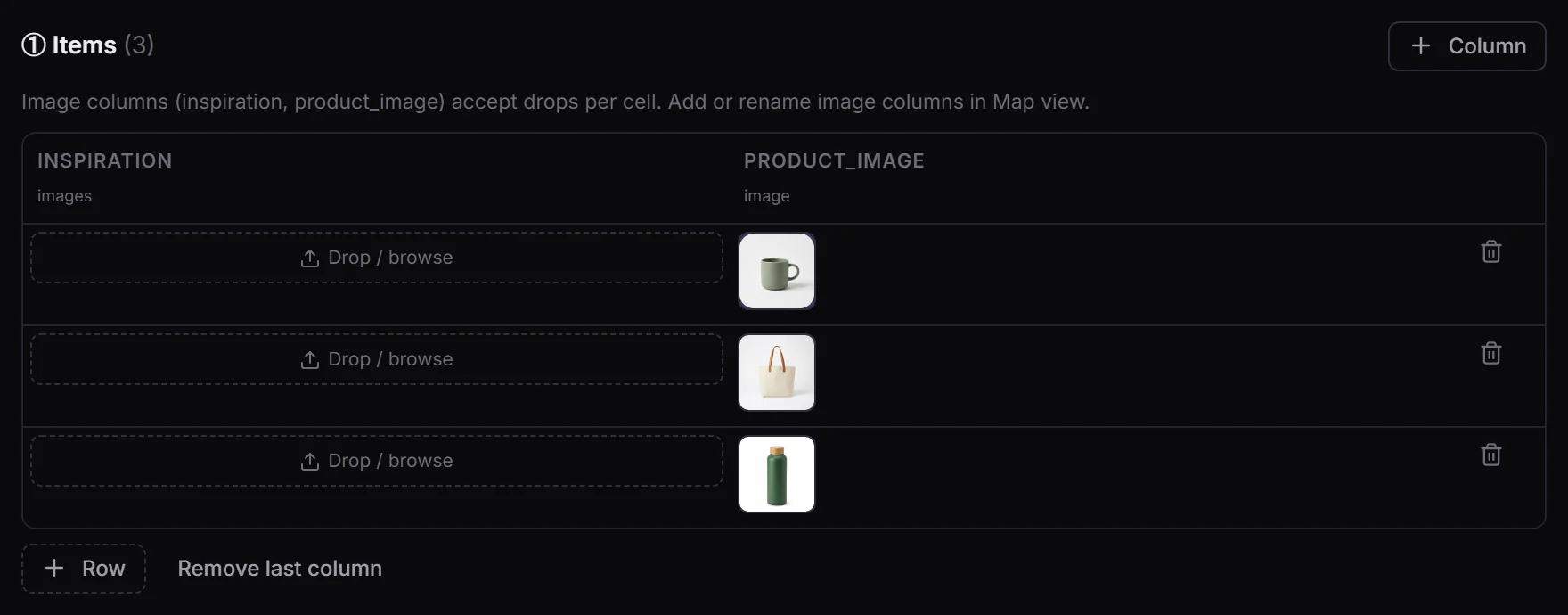
Step 3: Drop each photo into its row
Drag each product's photo onto Drop / browse in the product_image column of its row, or click it to pick a file. Items (3) counts the rows that are ready to run. The inspiration column is optional: put a style reference there if you have one.
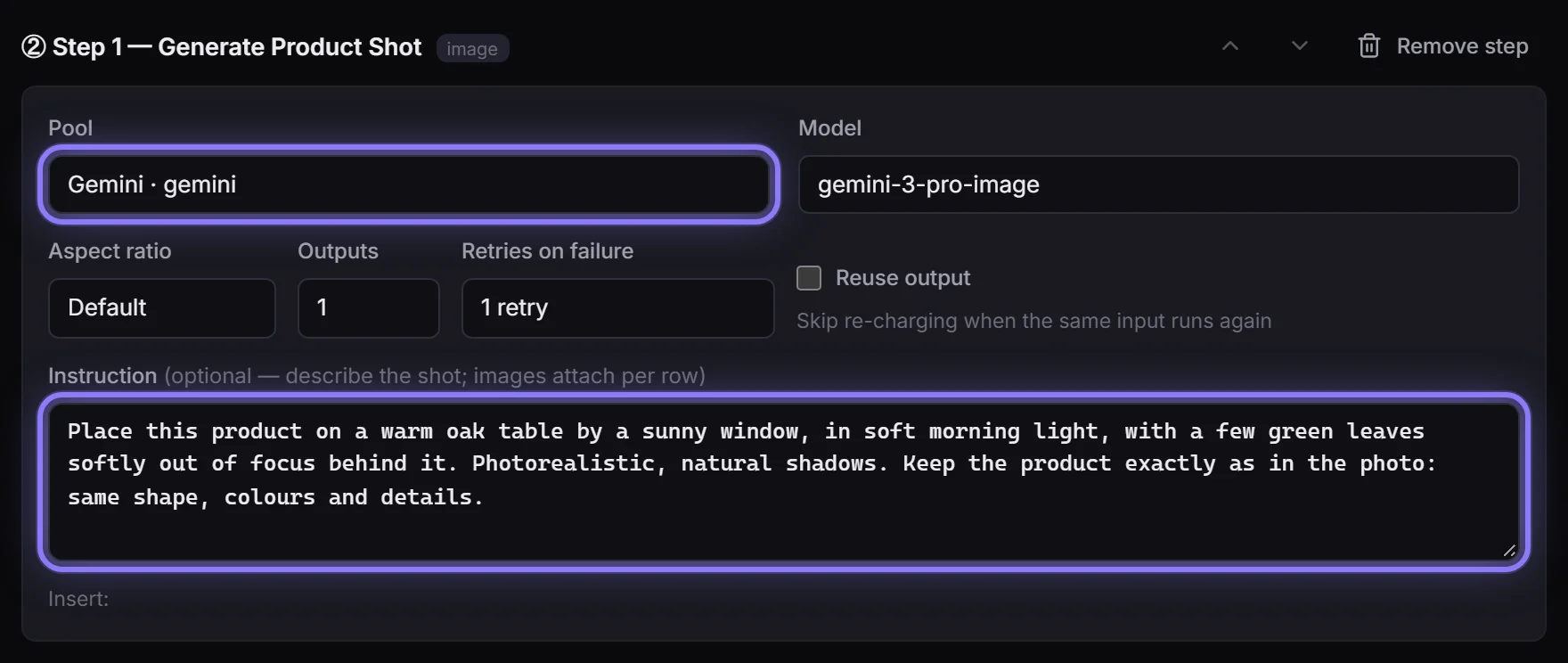
Step 4: Pick your pool, then describe the scene
In Step 1, set Pool to the pool that holds your API key (here Gemini · gemini; a pool groups your keys for one provider, see Pools). Then write the scene in Instruction: we asked for a warm oak table by a sunny window, in soft morning light. The one instruction runs for every row, and each row's photo is attached for you.
Step 5: Press Run
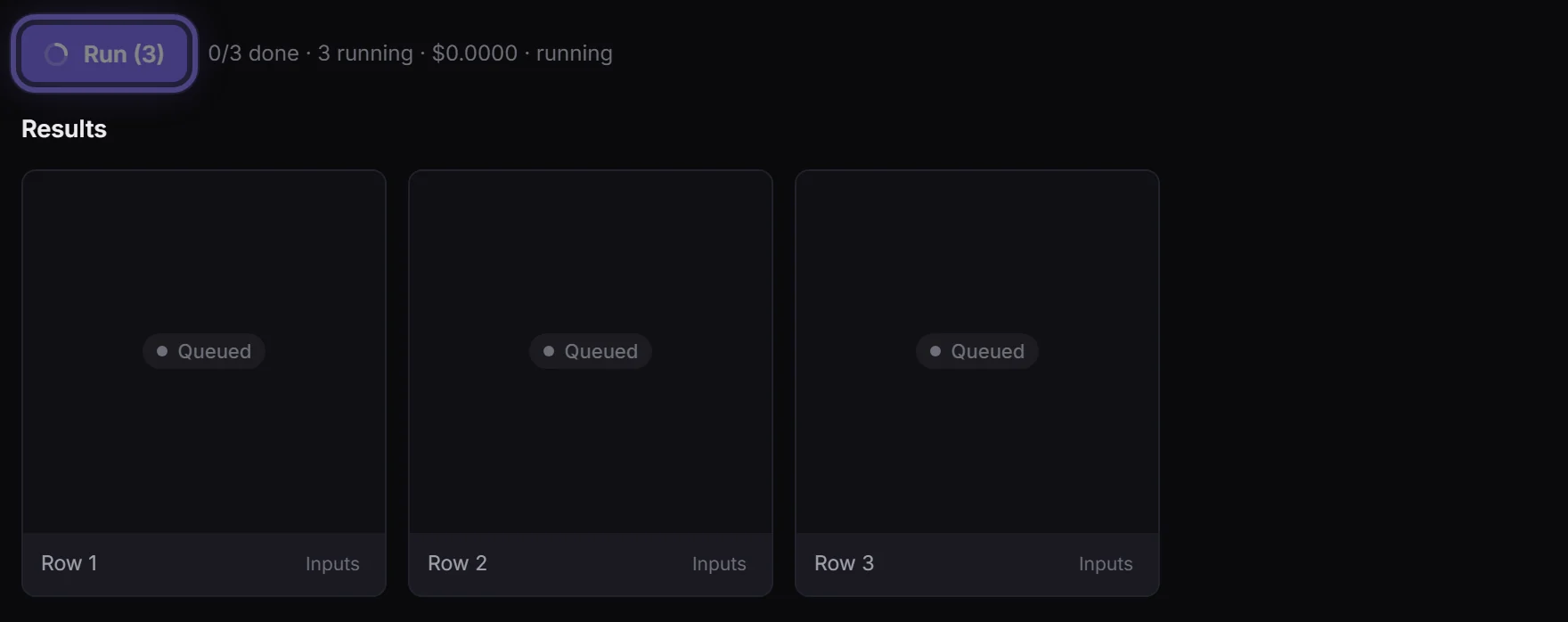
Press Run (3): the number is how many rows will run. They all go at once, and the line beside the button counts them as they finish. Our three were done in 18 seconds.
Step 6: Keep the good ones, regenerate the rest
Every result has Keep. Keep the ones you like; Regenerate unapproved then makes only the others again. The button shows what that costs before you confirm, and a kept photo is never paid for twice.
Step 7: Download them, or find them in the Library
Download all saves every photo in one go, or take one from its tile. Everything a run makes also lands in the Library, so you can find it again later.
In this article (11)
No key yet?
Open Pools. If it is empty, an admin needs to add a key under API keys and put it in a pool: API keys and Pools walk through it. You pick a pool by name and never handle the key itself.
No key at all? You can still do everything above in the built-in free test mode, which makes placeholder output for $0. Mock runs explains what that does and does not prove.
Rehearse it for nothing
Before spending, open the Data tab on the step (Map view) to see exactly what each row will send, with your values filled in. It is a $0 dry run of the inputs, and the best habit to build: it catches an empty column or a mangled prompt before a provider bills you for it.
What it costs
Each photo is paid to the image model's provider, from your own key. The cost of every result is on its tile, the run's total is next to Run, and Runs shows a lane per key with how the work was spread: see What runs cost.
Then what
- Save the flow (top bar) so it appears in Workflows with its own run, schedule, trigger and share actions.
- Feed it a real list instead of typing rows: a spreadsheet of items.
- Have it run itself on a timetable: schedules. Or let another system start it: triggers.
- Before anyone else joins, set a daily spend limit.