The Library: every output in one place
Months of runs collapse into one browsable, filterable shelf — so finding “that shot from the spring batch” takes seconds instead of opening runs one by one.
›Read the transcript
Everything your runs make lands in one place: the Library. Here's how to find it again.
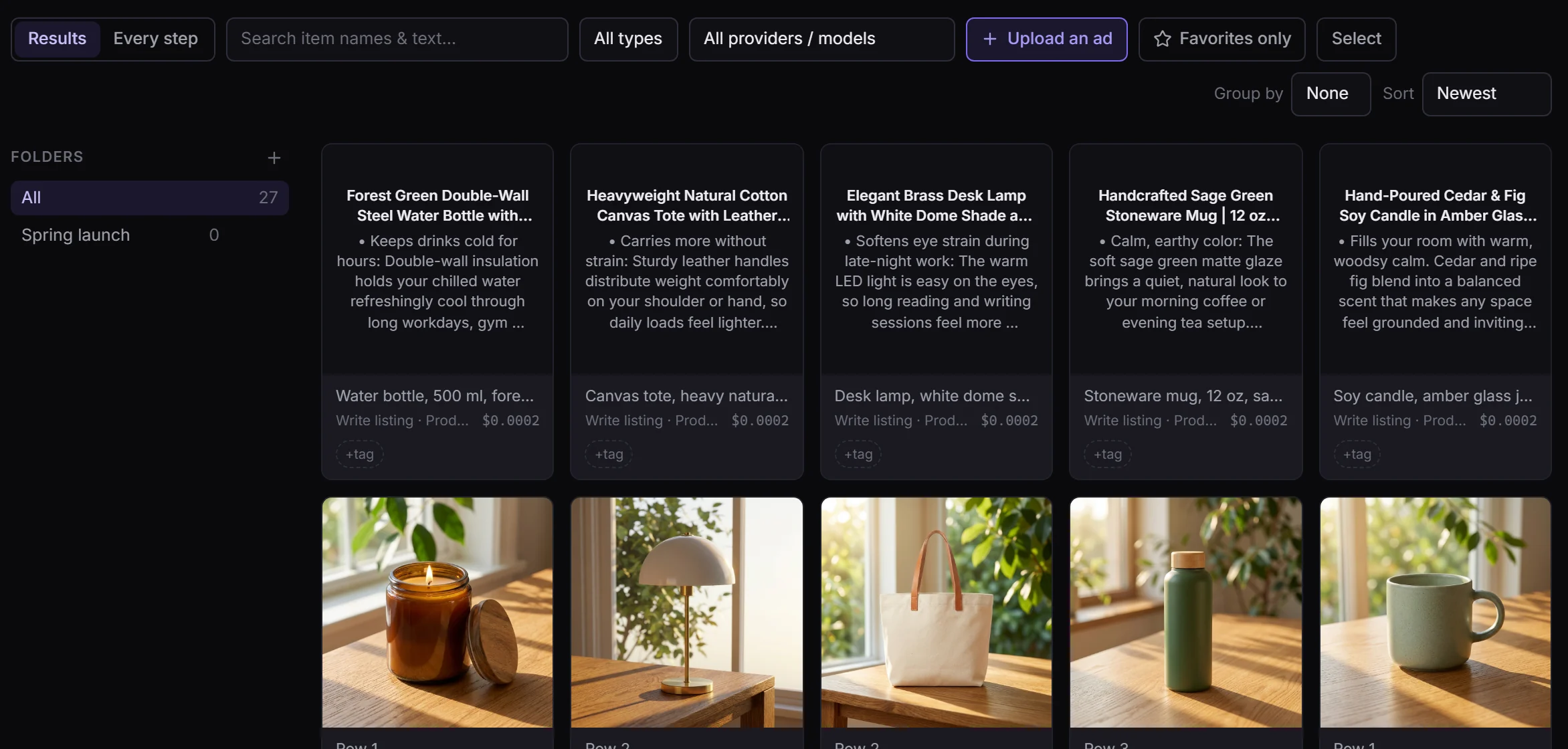
Open Library. Your newest results come first.
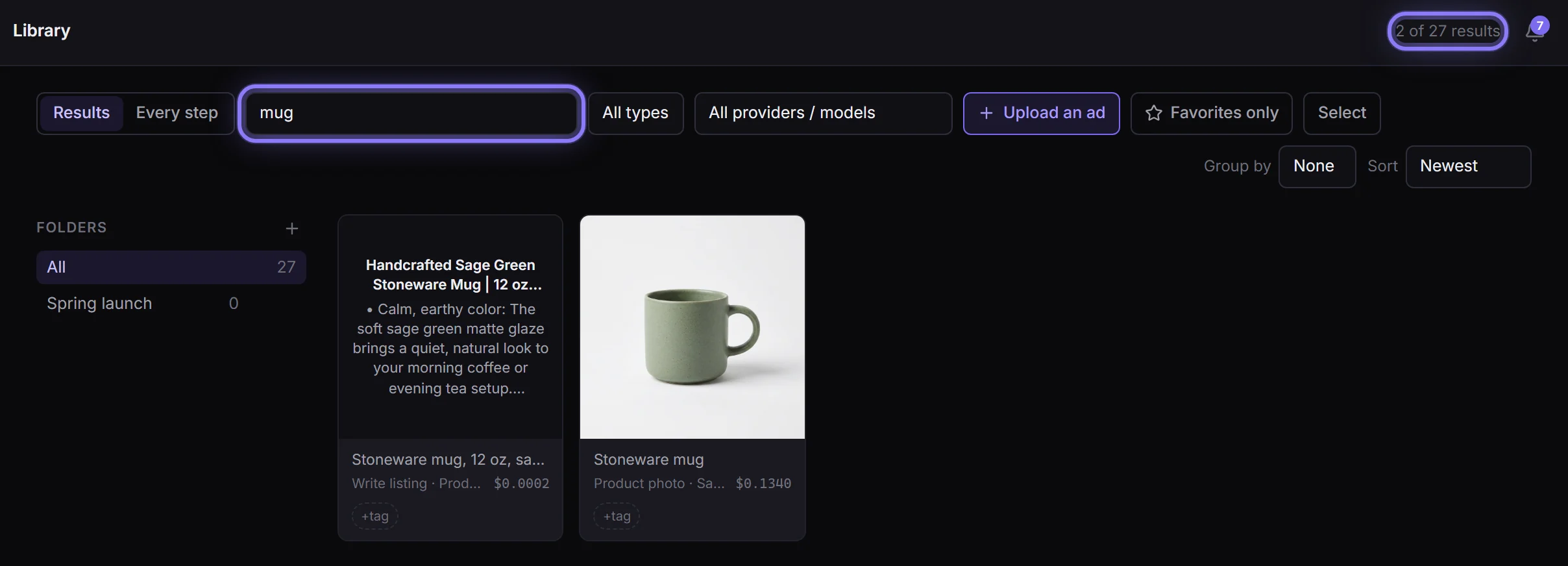
Type a word to search, or narrow it down by type.
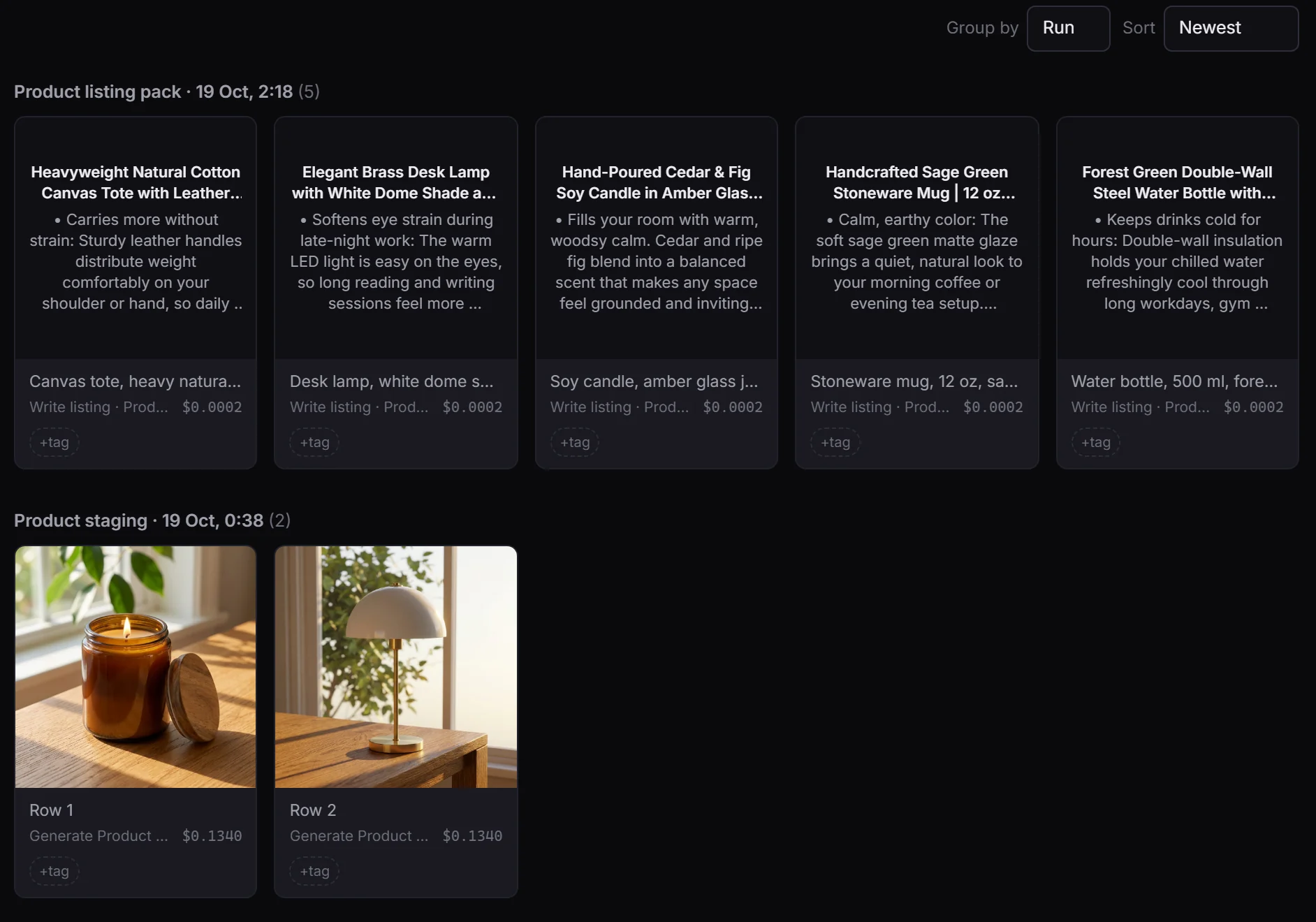
Group by run, and each run's results stay together.
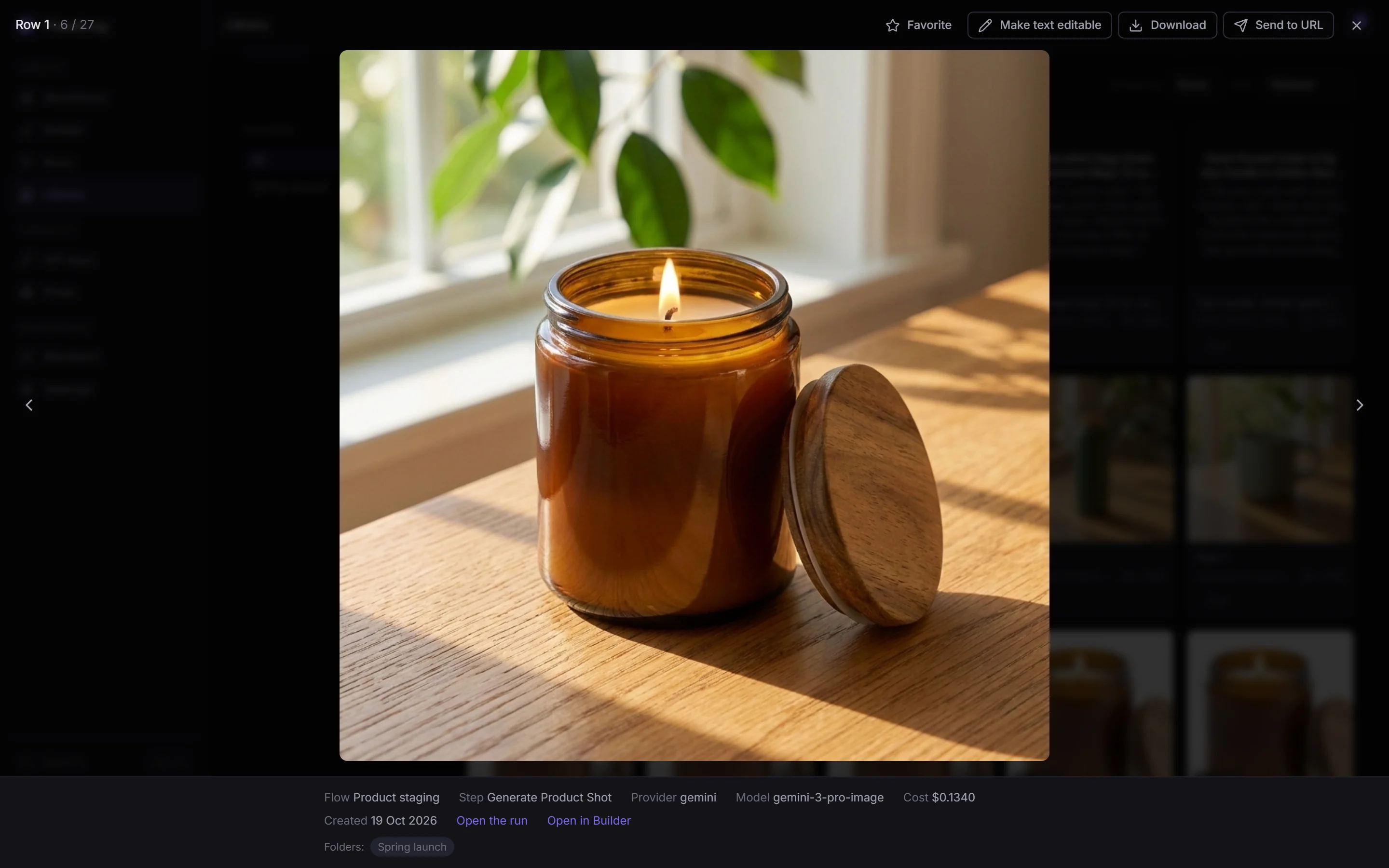
Open one to see where it came from: the flow, the model, and what it cost.
Star the ones you'll want again, and keep them in folders.
And Open in Builder brings back that run's flow and its rows, ready to run again.
FlowArray. Everything you make, kept.
Runs are a list by date, which is the wrong shape for "where is that image?". The Library keeps everything your runs have made in one place you can search, group, star and file, and any result takes you back to the run that made it, or starts it again.
Step 1: Open the Library
Click Library in the sidebar. It opens on Results, what each run finally made, newest first.
Step 2: Search, or narrow it down
Type a word: the Library searches names, steps, flows and the text itself as you type, and the count says how many match (2 of 27 results). The type menu narrows it to images, video, GIFs, text or audio.
Step 3: Group by run
Group by → Run keeps each run's results together, under the flow's name and when it ran. Flow, model, type, date and folder work the same way.
Step 4: Open one to see where it came from
Click a result for the full viewer: the flow and step that made it, the provider and model, what it cost, when it was made, and a link to its run.
Step 5: Star it, or file it
Favorite keeps it to hand (then turn on Favorites only). Click a folder under Folders to put it there; click again to take it out. Make folders with + next to FOLDERS.

Step 6: Open in Builder to run it again
Open in Builder loads that run's flow and its rows into the Builder as a new draft, ready to change and run again. Nothing runs until you press Run.
In this article (11)
Runs are chronological, which is the wrong shape for "where is that image". The Library re-cuts everything your workspace has ever produced — images, video, GIFs, text — into one shelf you can search, filter, group and organise.
Results, or every step
The Library opens on Results: what each run finally made — a finished video ad, each product's last image, each item's final text — not every piece along the way. A whole-run result (an ad's Final cut) carries its step's name and what the whole run cost. Switch to Every step to see everything a run produced on the way: the script, the checks, every scene image, every clip, the voice-overs and the music.
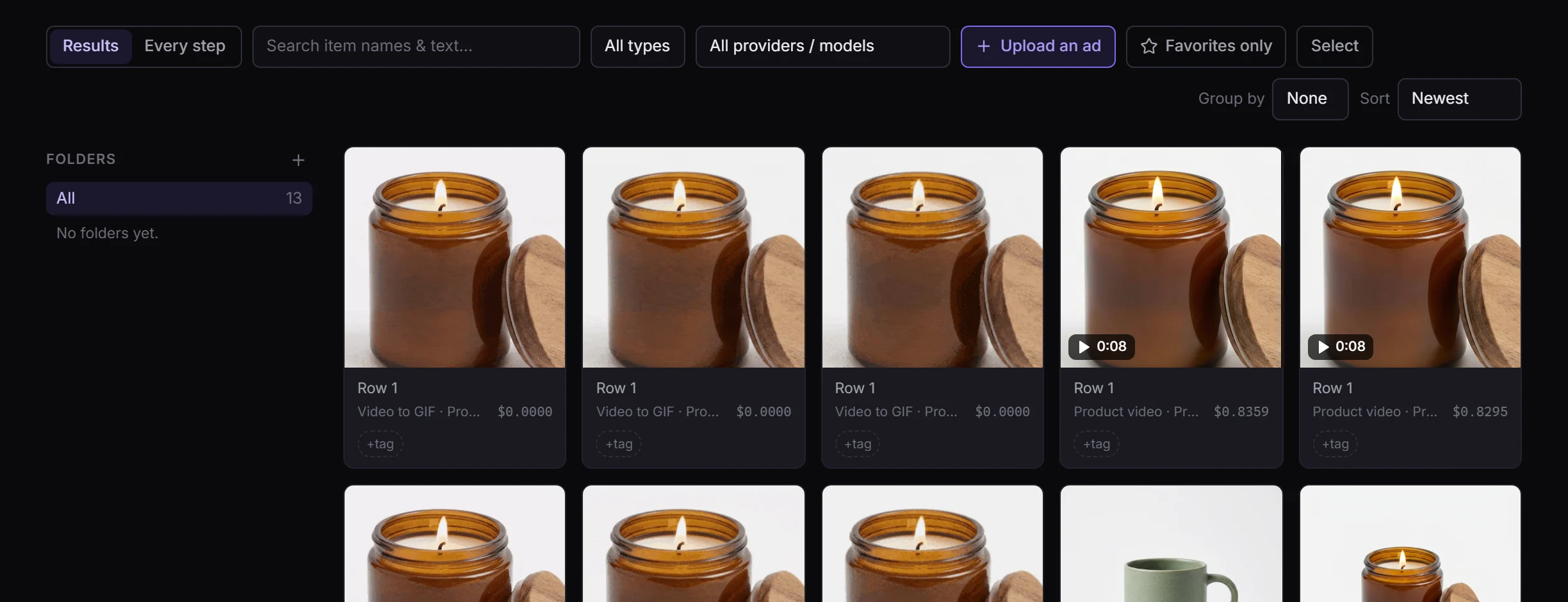
Videos show a ▶ sign and their length, and play silently while you hover over them; click one to watch it with sound. Voice-overs and music show as audio and play in the viewer. Each file appears once, even when an approval step or a re-run passed it along.
Finding something
- Search across output names, step names, the flows that made them and the text itself.
- Filter by type (image, video, GIF, text, audio) and by the model or provider that produced it.
- Group by run, flow, model, type, date or folder — grouping is what turns a thousand outputs into a handful of legible piles. Run keeps one run together, with what the whole run made first.
- Sort newest first, or by highest cost.
- Every output shows its flow, model, when it was made and its estimated cost, and links back to the run that produced it.
Organising it your way
- Favourite anything worth keeping to hand (★), then flip on favourites only.
- Folders you create yourself — "Spring campaign", "Approved for client" — an output can be in several. Rename or delete a folder without touching the outputs in it.
- Tags for free-form labelling, filterable in one click.
- Select mode for bulk work: favourite a selection, add a selection to a folder, or export a selection.
Viewing and exporting
- Click any output for the full viewer: images and video full size, text rendered as formatted text with a raw-markdown toggle.
- Download from the viewer.
- Send to URL posts an output — or a whole selection — to a webhook: Slack, Zapier, your own backend. It is the same mechanism as the Send to a URL card, available after the fact instead of inside the flow.
What it is and is not
- It reflects your current workspace only. Switching workspace switches the Library completely.
- It is assembled from your run history, so an output disappears from the Library only if its run is removed.
- Costs shown are the same estimates as everywhere else.
- Members and viewers see the workspace's outputs; the Library is not per-person.