Reading and reviewing results
Text as formatted text, images as a grid with a full-size viewer — keep the good ones, regenerate only the rest, and drill into what each step produced along the way.
In this article (6)
Results are meant to be reviewed, not just retrieved — because with generative output the interesting question is always "which of these are good enough".
Where results appear
- In the Builder — Simple view shows the grid inline; Map view opens it with View all results on the gallery card (or from the Data tab).
- On the run's page in Runs, item by item.
- In the Library, pooled with every other output your workspace has produced.
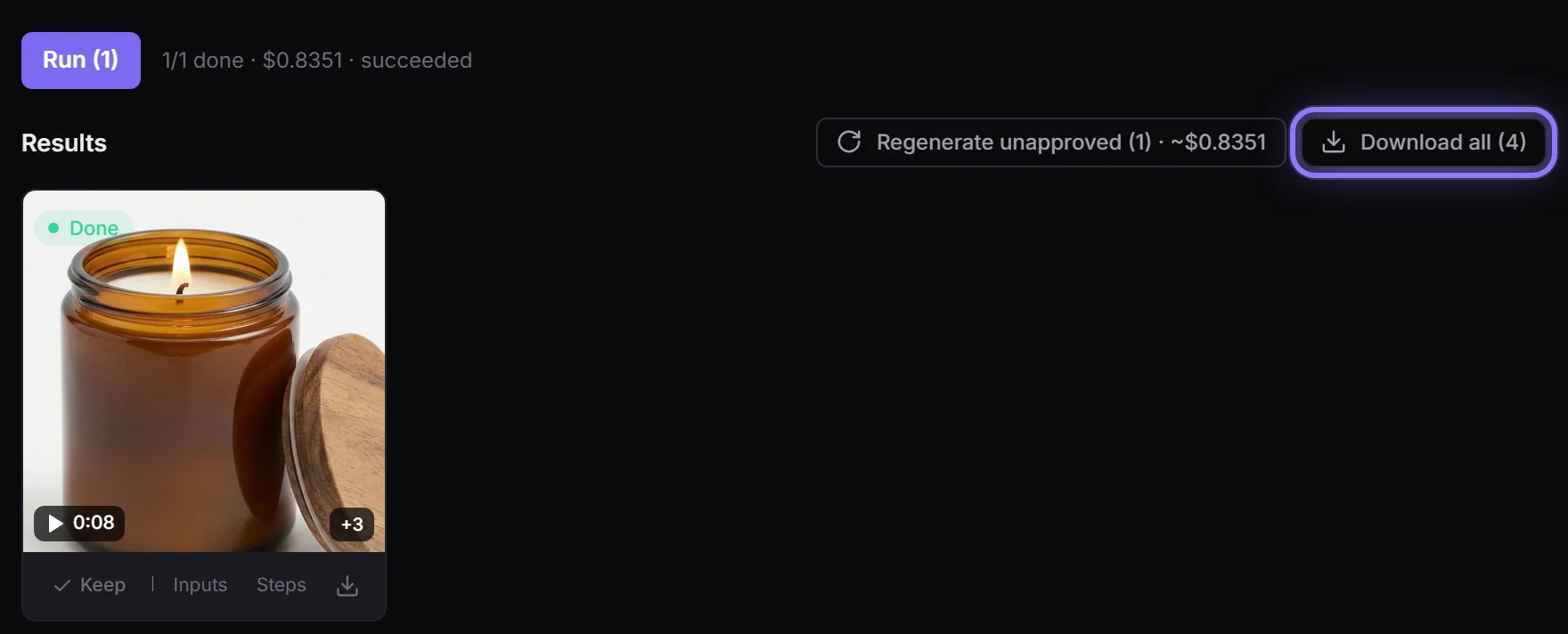
Reviewing images
- Click any result for the full-size viewer: ← / → to move between items, Esc to close.
- Keep the ones you want (they get a highlighted border).
- Regenerate unapproved (N) then re-runs only what you did not keep, showing the total cost before you confirm. Kept items are never re-paid for.
- ↻ on a single tile regenerates just that one, with its cost on the button.
- Download one from its tile or the viewer, or Download all for the set.
Reading text
Text output renders as formatted text, with an Aa / </> toggle to see the raw markdown when you need to copy it exactly. The same toggle exists in the Library's viewer.
Steps: what happened between the input and this
A multi-step flow's item has intermediate outputs, and they are worth seeing when a result surprises you. Open Steps on an item to get each step's own output in order — the copy that was written before the image was rendered, a QA verdict and score, an agent's full tool transcript (which tools it called, with what, and what came back).
Markers you may see on a result
| Marker | Meaning |
|---|---|
| Reused · no charge | A pinned step served a cached result for an identical input; cost $0 |
| Needs review | A Repeat loop hit its try limit; this is the best attempt, not a pass |
| Failed | That item's step genuinely failed — see troubleshooting |
Getting results out
- Download for the ad-hoc case.
- The Send to a URL card POSTs each item's result to Slack, Zapier, or your own backend as part of the flow.
- The Library can export individual outputs, or a multi-selection, to a webhook.
- A read-only share shows a client the results without giving them your workspace.