Make a video and a GIF from a product photo
Pick Product video ads, drop in your photo, press Make a GIF, then Run: a short video and three looping GIFs in less than two minutes.
›Read the transcript
One product photo in. A video, and a GIF, out. Here's how, in FlowArray.
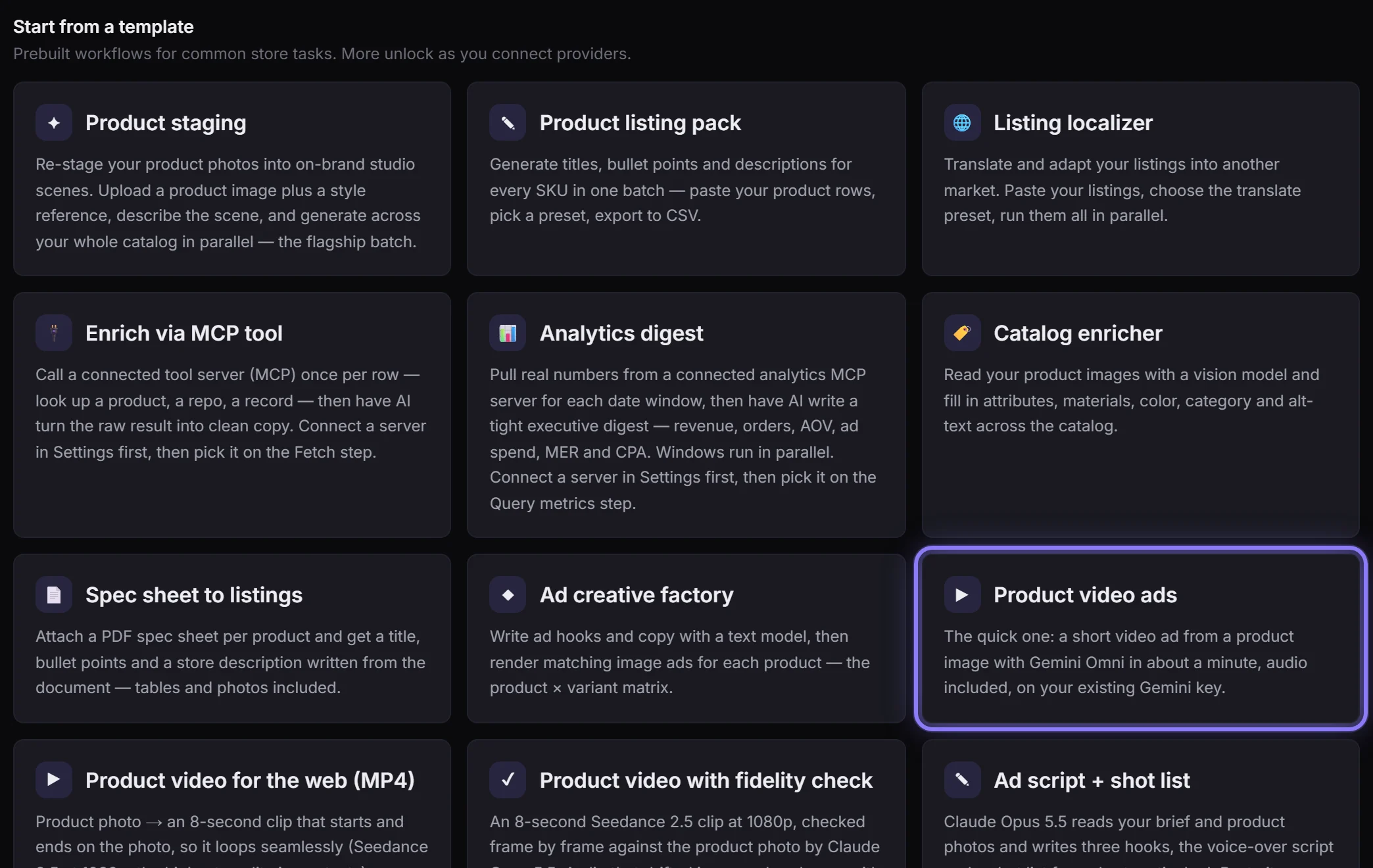
Open Workflows, and pick Product video ads. It opens in the Builder, ready to go.
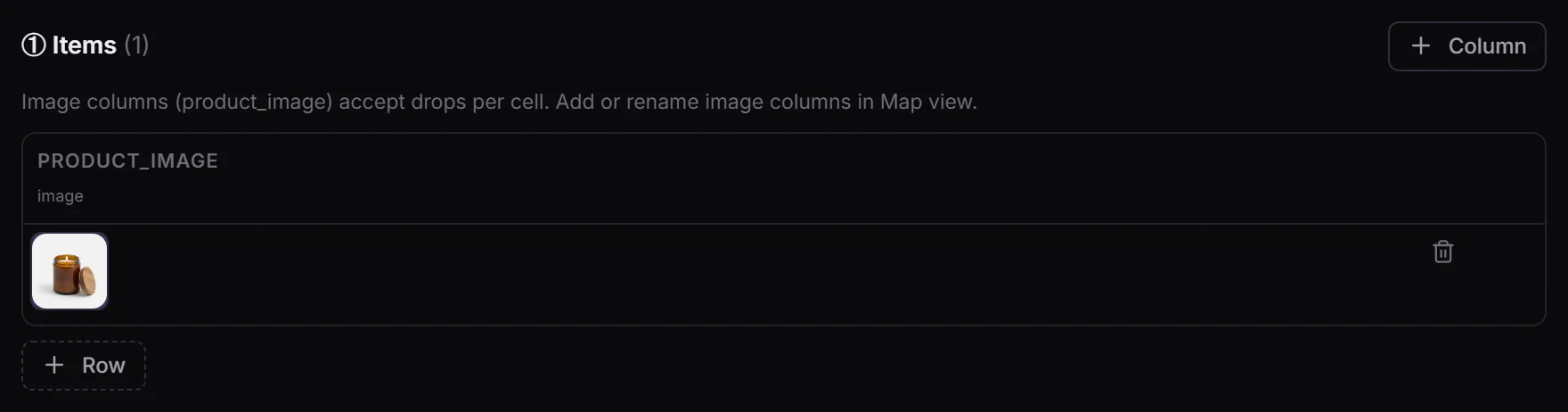
Drop your product photo into the first row. One row is one product, so add a row for each one you have.
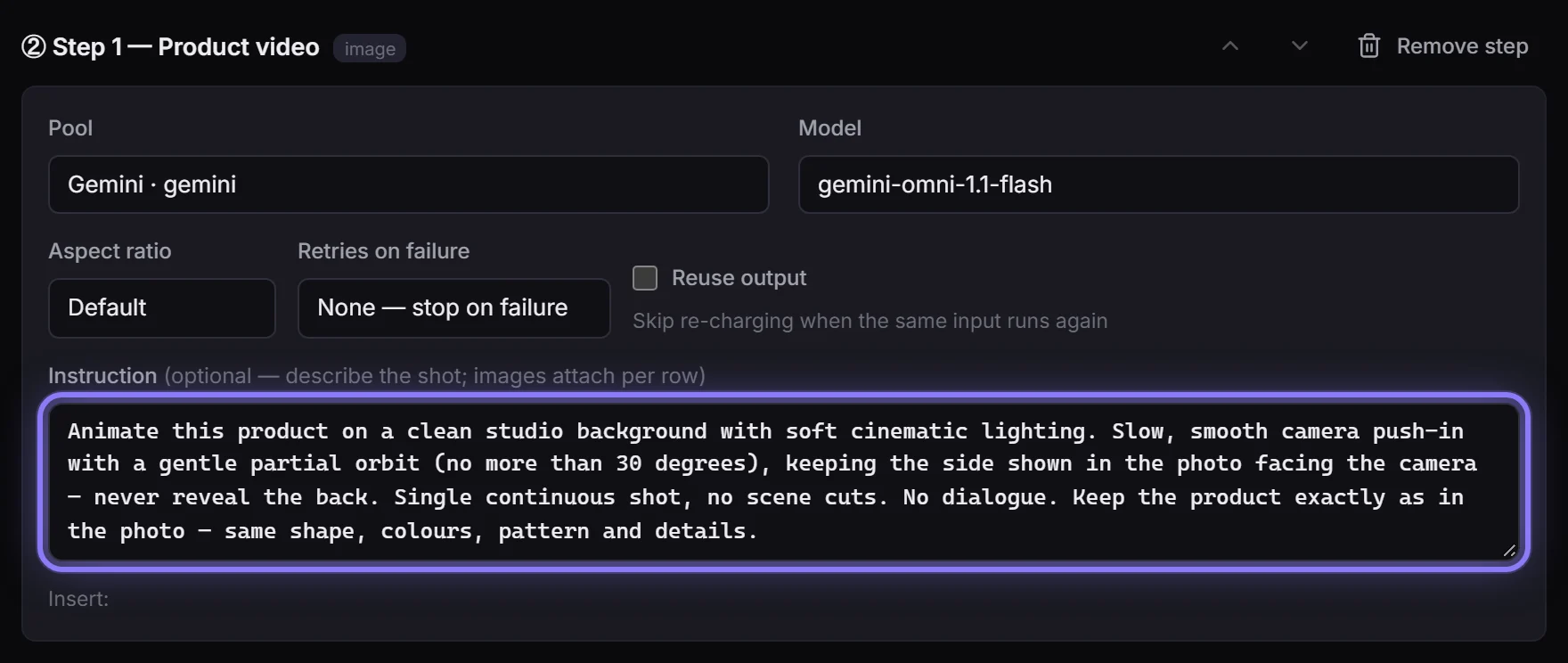
This is the prompt the video model follows: a slow push-in, a clean studio, and your product kept exactly as it is in the photo. Change any of it.
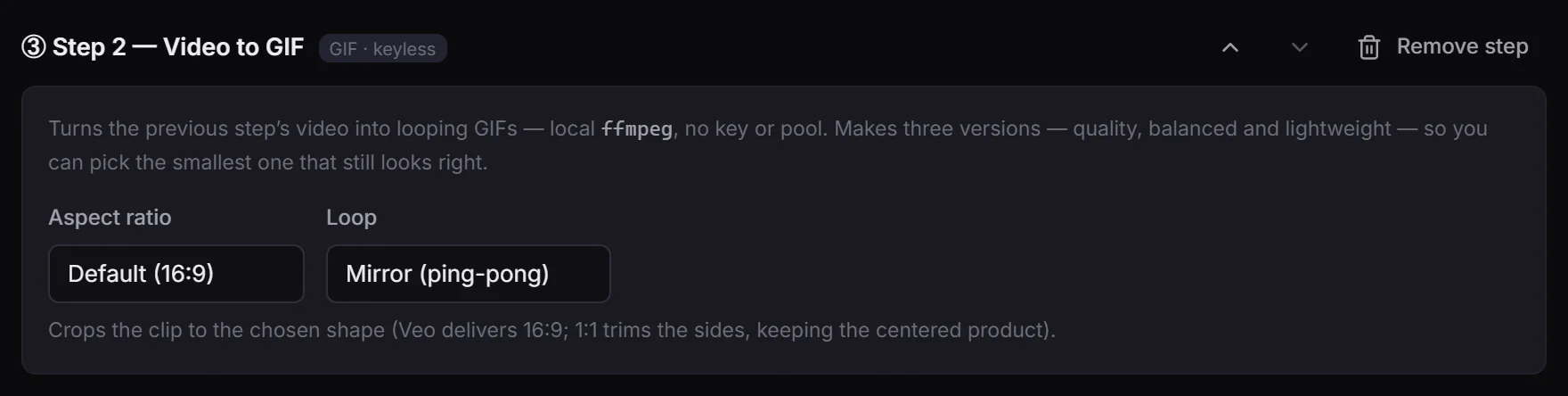
Want a GIF as well? Press Make a GIF. It turns the video into three looping GIFs, for free.
Now press Run.
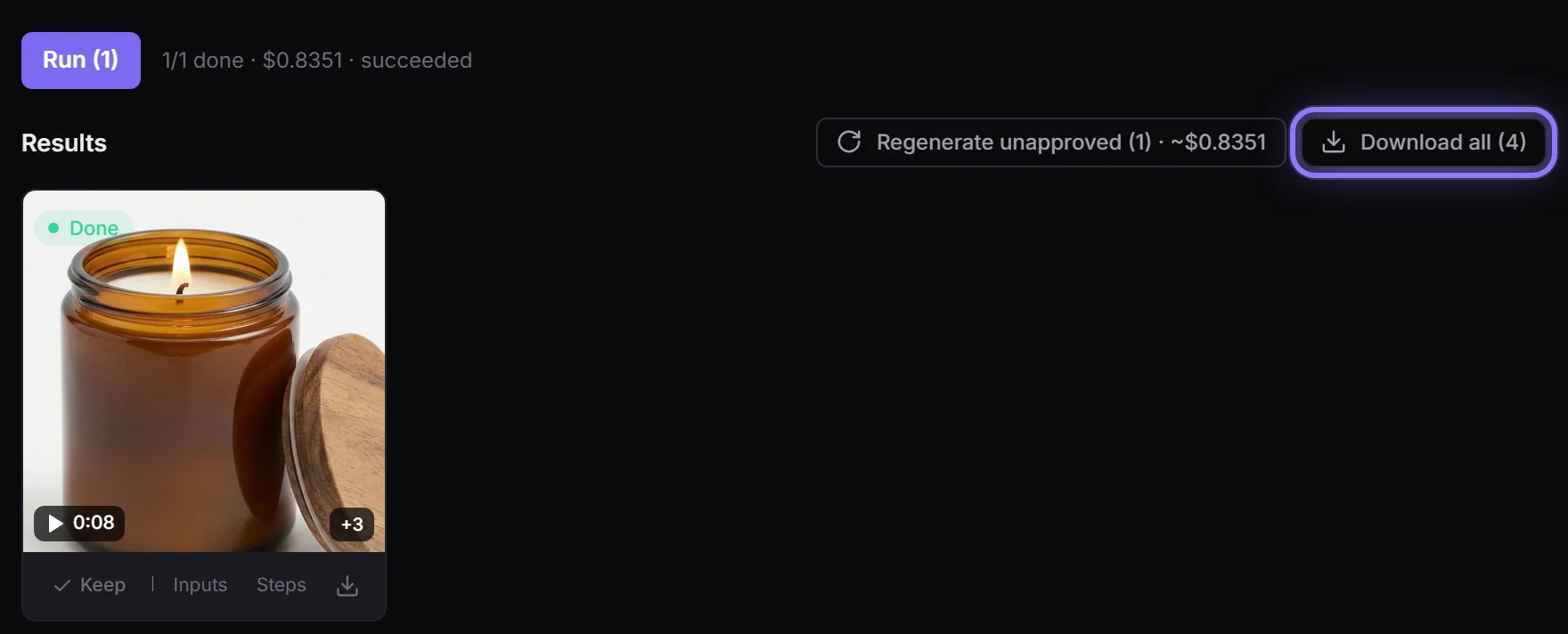
Less than two minutes later, your video is here, with its GIFs right behind it. Download them all at once.
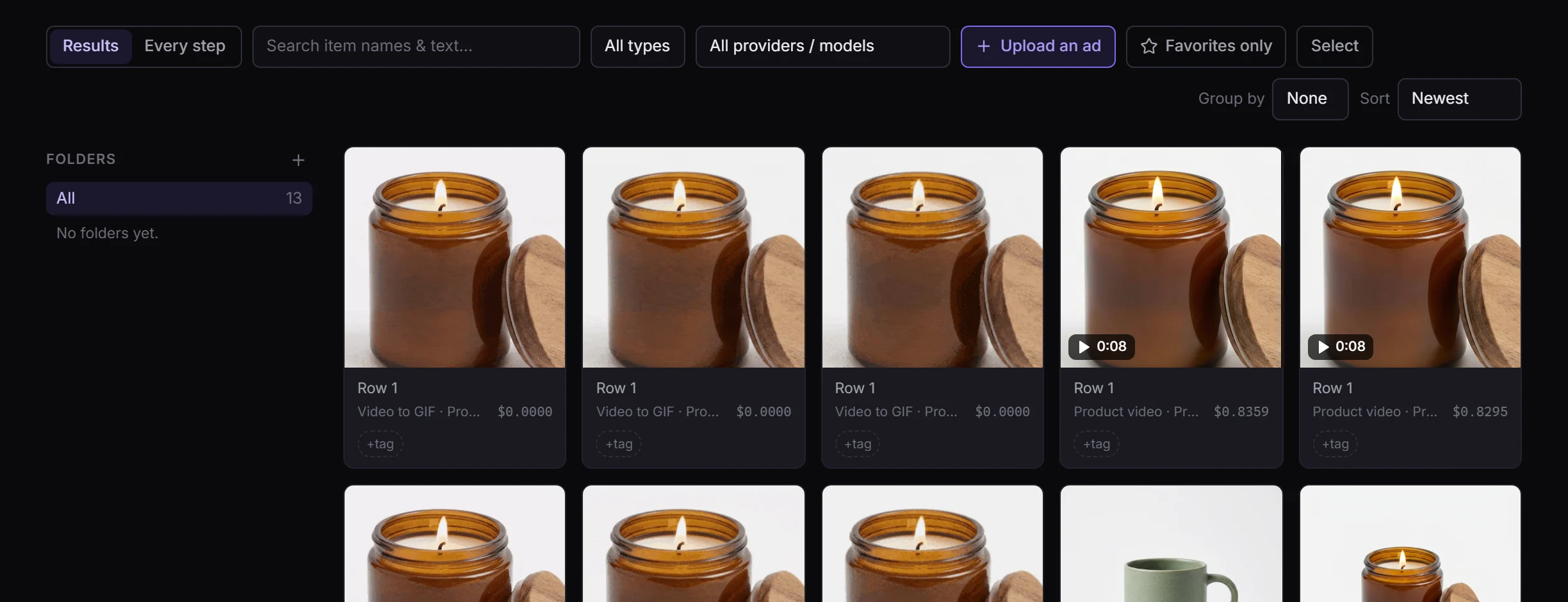
And everything you make waits for you in the Library.
FlowArray. One photo, or your whole catalogue.
A product that moves catches the eye where a still photo doesn't: on a landing page, in an ad, in an email. FlowArray turns the photo you already have into a short video and three GIF sizes in one run, and the same few clicks work for one product or a whole catalogue.
Step 1: Open the Product video ads template
Go to Workflows in the sidebar and pick Product video ads. It opens in the Builder with everything set up: a row for your photo, a video step with its prompt, and the Run button.
Step 2: Drop your product photo into the first row
Drag the photo onto Drop / browse, or click it to pick a file. One row is one product: press + Row to add another, and each row gets its own video.
Step 3: Check the prompt
Step 1 makes the video. Its Instruction is the prompt the video model follows: a slow push-in, a clean studio, and your product kept exactly as it is in the photo. Change any of it; the video follows what you write.
Step 4: Press Make a GIF
Under the video step, press Make a GIF. (Making MP4s for a web page instead? Press Web-ready video.)

Step 5: Check the GIF step
A second step appears: Video to GIF. It turns the video into three looping GIFs, quality, balanced and lightweight, so you can pick the smallest one that still looks right. It runs on FlowArray's own server, so it's free and needs no API key.
Step 6: Press Run
Press Run (1); the number is how many rows will run. The line next to it shows how many are done. Our sample took about a minute and a half: the video first, then the GIFs. When it's done, the video is in Results with +3 for its GIFs; click it to watch, or press Download all to get all four files.
Step 7: Find it again in the Library
Everything you make also lands in the Library: the video (with its play sign and length) and each GIF, ready to download or reuse.
In this article (11)
Which video template?
- Product video ads: the quick one. Gemini Omni makes an 8-second clip with sound in about a minute, on your Gemini key. Good for a first look and for social posts.
- Product video for the web (MP4): the best quality in our tests (Seedance 2.5 at 1080p). The clip starts and ends on your photo so it loops without a jump, then becomes small, silent MP4s for landing pages. It takes 5 to 9 minutes and needs a fal.ai key.
- Product video with fidelity check: the same, plus a check of every frame against your photo. A clip where the product changed is made again once, and flagged Needs review if it still isn't right.
All three are in Workflows.
GIF or MP4?
GIFs play almost everywhere, including email, but they are big and a little grainy next to a video. On a landing page, a muted, looping MP4 looks just like a GIF at a fraction of the size: press Web-ready video for three MP4 sizes and a cover picture. Want both? Press Web-ready video first, then Make a GIF.
What it costs
The video step is paid to the video model's provider, from your own key: see What runs cost. The GIF and web-video steps cost nothing.
Doing a whole catalogue
Add one row per product (or bring a whole spreadsheet: see Running a spreadsheet of items) and press Run once. The rows run side by side, and one that fails doesn't stop the others.